MUSIC SERVER PROJECT (Part One)
This posting will outline the steps I’m taking to transform an older desktop computer into a high-quality music server. Since I’m starting with a nearly deceased Compaq desktop that had one foot in the landfill, I’m calling it the Phoenix Project.
I recently bought a new Windows 7 desktop computer to replace my not-that-old, but still outdated XP machine, which was barely limping along for the last 6 months with a fickle hard drive and several impish gremlins lurking in the operating system.
Rather than donate the old Compaq to some unsuspecting sucker, or contribute to the ever growing techno-pollution of my local landfill, I decided to see if the old pony could be spared the glue factory and re-tasked as a dedicated music server.
Being only 3 years old (which is equivalent to about 40 man-years), it wasn’t totally obsolete…yet. It has a decent ASUS motherboard with an AMD Athlon 64 (single core) processor running at 2.4 MHz. I’d already upgraded the RAM to its maximum of 2GB; and, as a precaution, I purchased a replacement 250GB Western Digital hard drive for the day the old one finally bit the dust (which it never did).
MY REQUIREMENTS
In order to meet my criteria for a fully-functioning, high-quality music server, the old computer had to:
1. Run Windows 7 (32-bit version)
2. Accept a high-quality, 24-bit/192Khz audio card with coax digital output
3. Accept an HD video card with a DVI or HDMI output
4. Accept a second hard drive of least 500-750GB (for a total of 1TB max. storage)
First, Windows 7 requires that a computer have a minimum processor speed of 1Ghz and at least 1GB of RAM memory for the 32-bit edition of Windows 7. Check! (I scored the Windows 7 Home Premium upgrade at Office Max for $109, after a $10 discount coupon).
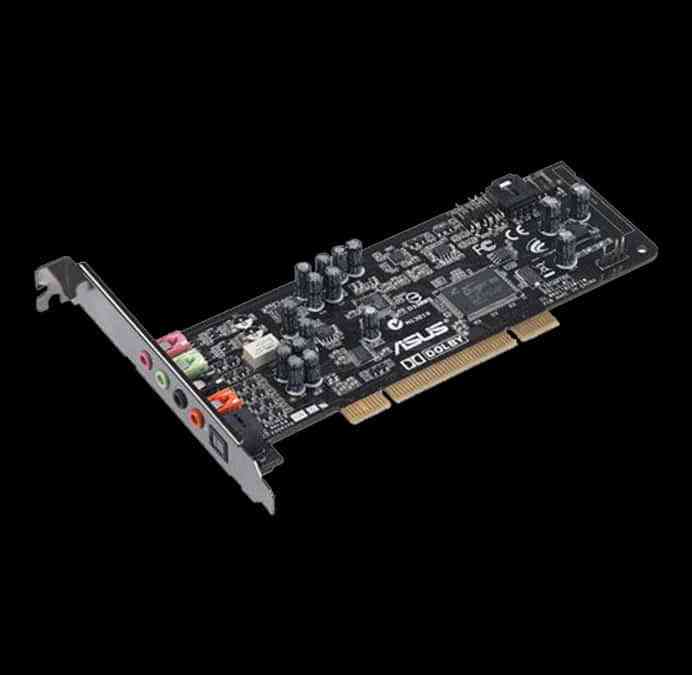
The second condition was a bit harder to find, since the Compaq had only one PCI-Express 1.0 expansion slot and three standard 32-bit PCI slots. A quick search on Google revealed that most of the quality sound cards available today have already migrated to the PCI Express 2.0 standard, which uses a completely different expansion slot, and runs a lot faster. Luckily, I was able to find an ASUS Xonar D2 sound card that takes a standard 32-bit PCI slot. Cost: $149, after a $30 mail in rebate.
With the PCI Express slot now open, finding a relatively inexpensive video card that met my specifications wasn’t too difficult. There weren’t a ton of options, but I found a PNY card with NVIDIA processors for about $50 after mail in rebate.
A quick call to HP support verified that I can add up to a 1TB external USB drive, which should more than enough to handle all my present and future storage requirements.
I started off by hooking up the replacement 250GB hard drive and, using my original Compaq recovery discs, reinstalled all the original files that came with the computer. This automatically formatted the new drive. [Beware, upgrading from XP to Windows 7 is what they euphemistically call a “clean install,” which means that it wipes out everything on your hard drive and starts anew. So if you plan on upgrading from XP, be sure to back up all of your programs and data first.]
The Windows 7 upgrade program comes with both the 32 and 64-bit versions of the operating system on separate discs. Microsoft has a program on their website that will check your computer and recommend the appropriate version of the OS to install. In my case, it was the 32-bit version.
So far, the Compaq’s power supply and hard drive appear to be relatively quiet. If need be, PC Power & Cooling makes a special “Silencer” power supply that reduces the fan noise to a whisper.
For music server software, it’s hard to beat iTunes. It’s powerful, easy to use, and it’s FREE! Best of all, it supports high quality uncompressed AIFF files and Apple Lossless (aka ALAC) music files – no MP3’s or lossy compressed files need apply, you won’t be employed.
If you’re starting with shiny discs, iTunes can rip your music directly into AIFF or ALAC files. If you’re into downloading your music, your road may be a bit rockier. Oddly enough, the Apple iTunes Store does not offer AIFF or ALAC downloads (yet). Which means you’ll have to seek out other sites that offer CD (and higher) quality downloads. But there’s great news for us audiophools – there are several sites (hdtracks.com and others) that are offering 24-bit/96kHz and 24-bit/192kHz file downloads (24/96 is equivalent to a DVD-Audio disc, and 24/192 is studio quality audio). Many of these are only available in a FLAC (free lossless audio compression) format, which isn’t one of the formats that iTunes (or the iPod) can read.
TRANSCODING TO THE RESCUE
I tried a number of audio conversion programs that claimed to do FLAC to ALAC conversions, but none of them did it correctly. One down-resed the HD files to 16-bit/44.1kHz, the other maintained the HD resolution, but (inexplicably) recompressed the file, which added about 20dB to the noise floor, making the resulting file worse than an MP3 file (if that’s possible). After much searching I finally found a program called dBPoweramp that filled the bill. It’s really a collection of programs (a CD ripper, a file converter, and a CD writer) that can be purchased as a suite for less the $40. If you’re interested, check out their website at dBpoweramp.com.
So far, I’ve ripped about 160 CD’s directly into iTunes, and have downloaded a handful of high def FLAC titles, which I converted into high def ALAC’s using dBPoweramp and imported into iTunes. Everything sounds great – CD quality or better.
As I write this, the half-completed Compaq is sitting at my feet awaiting the delivery of the audio and video boards. I picked up a wireless Ethernet card at my local Best Buy so I can link the Music Server to my main computer, and to the internet. Along with the ability to download and store movies, TV shows and podcasts, iTunes also includes a library of hundreds of internet radio stations available for streaming at the click of a button.
SYSTEM INTERFACE
The plan is the take the coax digital output from the Xonar sound card directly into my Lyngdorf TDAI-2200 amplifier, which means everything stays in the digital domain from the hard drive all the way to amp’s output stage, where a reconstruction filter (consisting of two passive components) converts the output into an analog signal for the speakers. This eliminates a lot of unnecessary D/A and A/D conversions.
Compare this to a system comprised of a CD player, preamp and one of the current crop of “digital” amplifiers. The CD player reads the digital information on the disc and converts it (using a D/A converter) into an analog signal before passing it on to the preamp, where the signal is amplified and possibly enhanced (both of which add noise) and then it’s sent along to the amplifier, where it must to be converted back into a digital signal (using a A/D converter) for Class D amplification purposes, before its converted back to analog (using another D/A converter) for its final journey on to the speakers.
Given the choice, from a purely theoretical standpoint, which process would you prefer? And I haven’t even mentioned the convenience of having all your music in a comprehensive database with cover art and a nifty graphical user interface!
That’s all for now. Future updates will detail the successes, challenges and setbacks I encounter along the way, and finally, how well (or not so well) the Music Server performs when compared to a highly regarded CD/SACD player. Then we’ll discover just how well the theoretical model can perform in the real world.
[part two]
[have a question about this project? – ask the author direct]
Discover more from Audio Resurgence - High End Audio Reviews and Products
Subscribe to get the latest posts sent to your email.